



Layers and AI masks
Graded in steps aboveFace, body and background on their own layers. The way we graded this image.
- Feels
- Natural, alive, controlled
- Tool
- Capture One layers, Color Balance, Color Editor
- Best for
- The look of the whole image
Four steps from the RAW file to the final grade, on a beauty image we shot for Madame Germany.

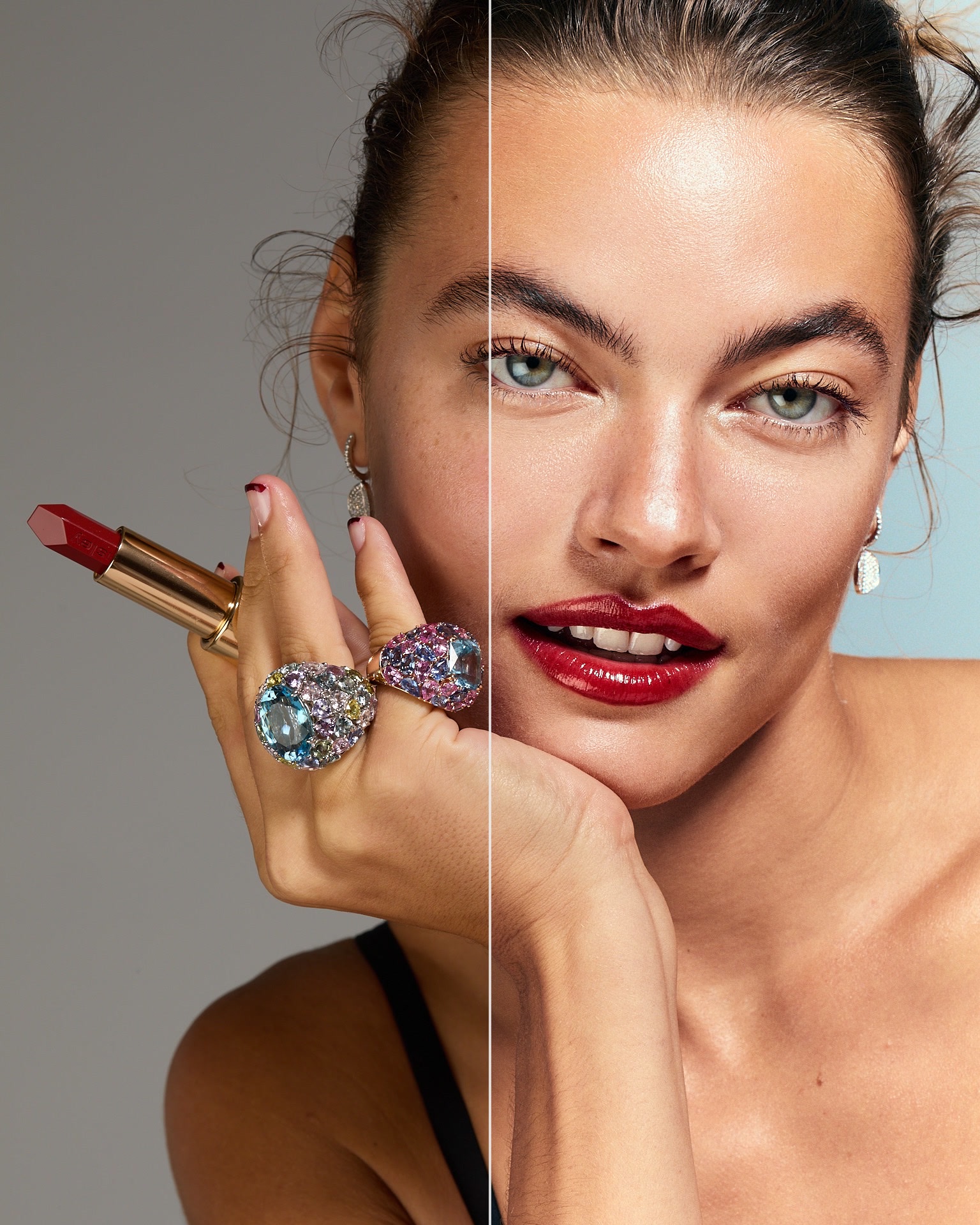
We shot this beauty image for Madame Germany. Skin usually goes wrong the same way: too orange and too flat. So we keep global saturation low and put colour only where it belongs.
Four rules run through the whole grade. Warm shadows and clean highlights: red in the shadows reads as life, neutral highlights read as shine. The face is the brightest skin in the frame; neck, chest and hands step back. Colour goes into the skin, and the rest of the image stays quiet. And a cool background is the partner of warm skin: the contrast makes the skin look warmer without adding any warmth to it.
Each image is rendered from this file and adds only the tools described in its step.


The values belong to this image. On another file, keep the direction and find new values.
Capture One's Color Editor has its own Skin Tone tab. Pick a spot of skin, and the tool selects that colour range. Hue, saturation and lightness move the whole range. The Uniformity sliders do something different: they pull the colours inside that range closer together, so red patches and yellow patches move toward one tone. Use it gently. Too much uniformity takes the life out of skin, and the colour contrast from Step 03 is exactly what you want to keep. On a face layer, it works best as a small correction after the grade.
Two of them in Capture One, one in Photoshop.
Face, body and background on their own layers. The way we graded this image.
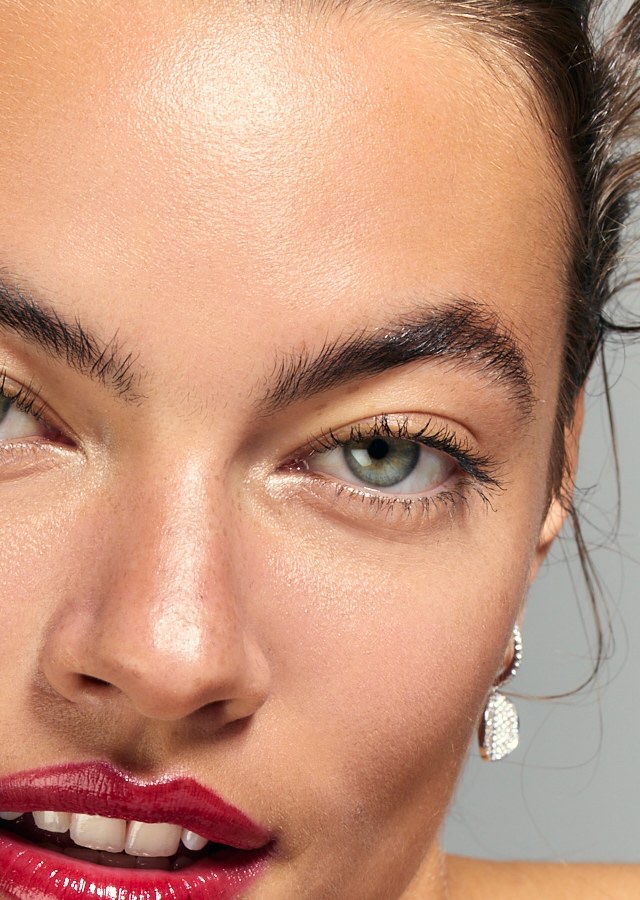
Selects a skin range and evens it out with the Uniformity sliders.

For local colour shifts, Jan Wischermann works in Photoshop. A temporary help view turns skin into strong blues and greens so every red or yellow shift jumps out. He then paints the correction on a layer in Hue mode, which changes colour without touching texture or light.
Most of the work happens in Capture One, before the image ever reaches Photoshop. Good light makes all of it easier: this image was lit with a beauty dish, shown in our beauty dish breakdown. For whole-series looks, see how we use Capture One styles.
Spots and dark circles read as colour problems. Clean them first, or you correct colour that is really retouching.
It pushes skin, background and jewellery up together, and everything turns orange and flat.
Pull neck, chest and hands down a little, and the face comes forward.
A cooler background makes skin look warmer than any slider on the skin itself.
Members get the full skin tone workflow on this image, with every step and every value we left out here.

Start with a slightly cooler white balance and low global saturation. Then give the face its own layer from the AI mask and add colour only there: a little red in the shadows, cleaner highlights. A cool background makes the skin look warmer without touching it.
It pulls the colours inside the selected skin range closer together, so patches of red and yellow move toward one tone. Use small amounts. Too much makes skin look flat and painted.
Both, for different jobs. Capture One sets the overall skin tone and the look. Photoshop is for local fixes, such as a red patch on a cheek, painted on a layer in Hue mode so texture and light stay untouched.
Usually because of a warm white balance or too much global saturation. Cool the white balance slightly, bring global saturation down, and add warmth back only to the shadows of the face.
60+ lighting setups and 60+ Capture One styles from editorials and campaigns
