



EyeHelp & hue layer
Used hereFinds and fixes small colour shifts in the skin, one patch at a time. Texture and brightness stay untouched.
- Changes
- Hue only
- Speed
- Fast once you see the patches
- Best for
- Close-ups, beauty, keeping a series consistent
Jan Wischermann makes colour patches in skin visible with the EyeHelp and evens them out in Photoshop.
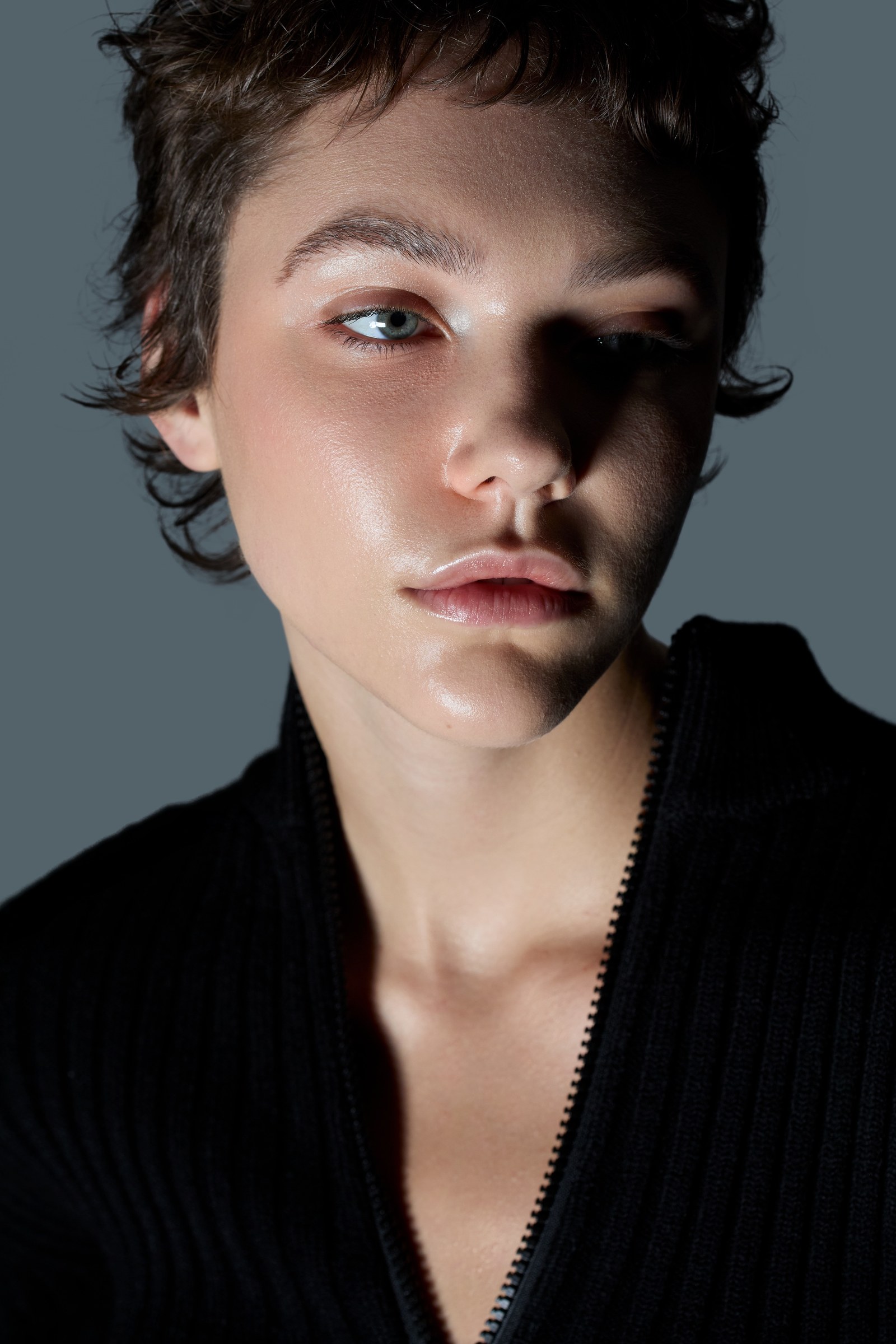
Small patches of yellow and red in the skin are hard to see in a colour image, and easy to overcorrect once you do see them. The EyeHelp shows them clearly, so you fix only what is there.
Dodge and burn evens out light and shadow. Skin tone correction evens out colour: a slightly yellow patch on the cheek, a red patch around the nose or eyes. Both matter, but they are different jobs with different tools. Some variation in skin is natural and should stay, and the make-up artist's colour stays too. What you remove are the patches that pull the eye, especially in close-ups and in a long series of images that has to look consistent.
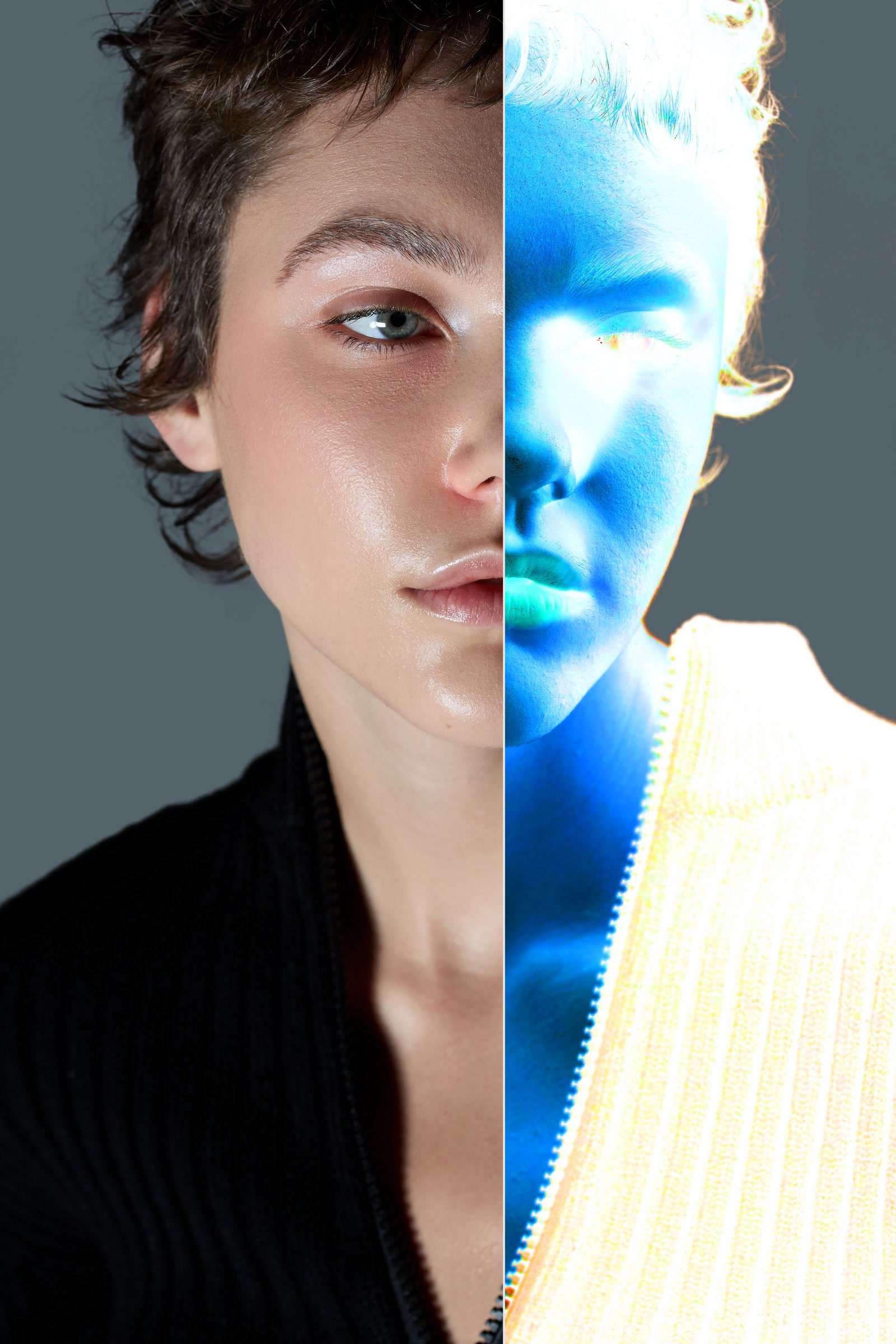
The way Jan showed it in our live session From RAW to Campaign.
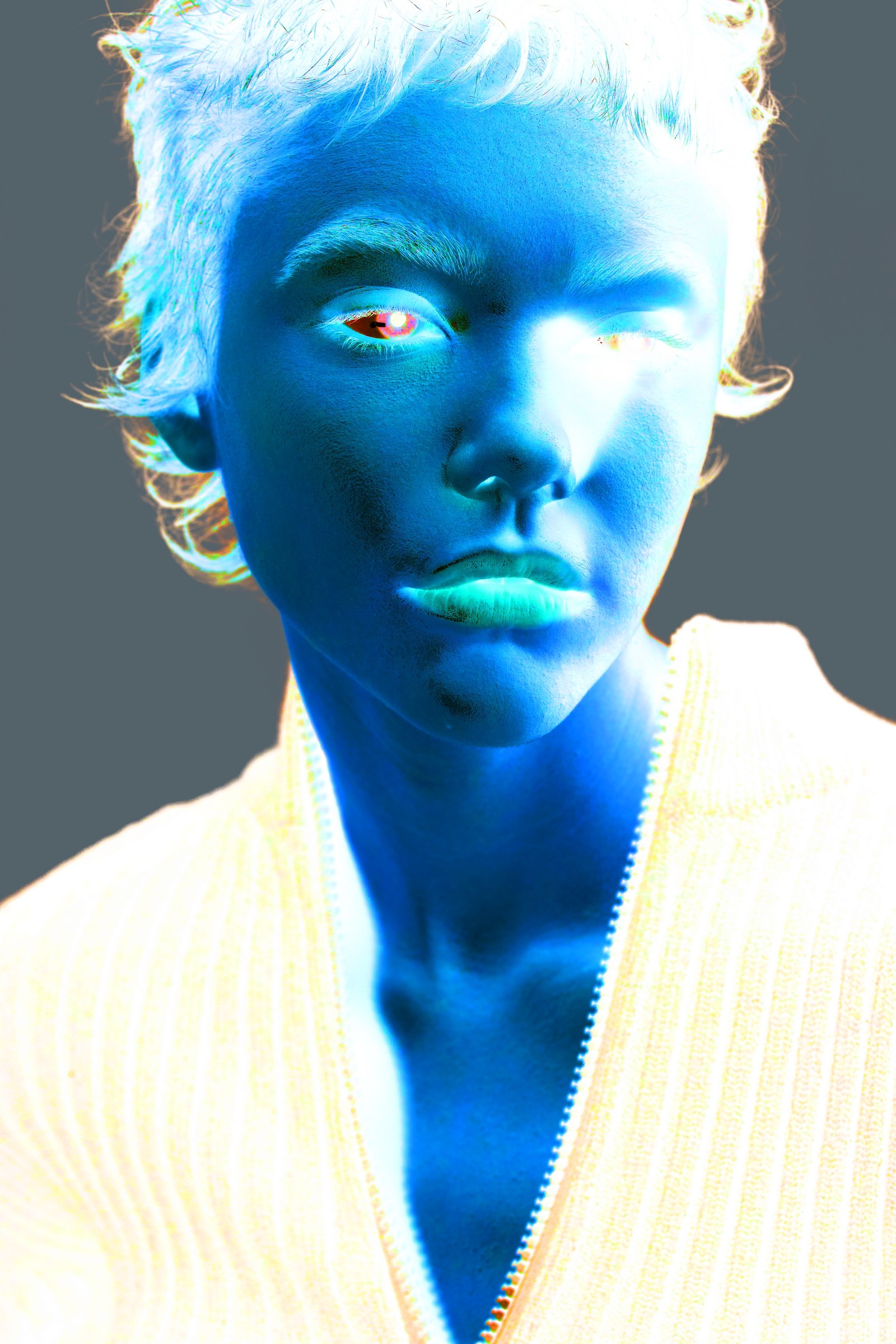
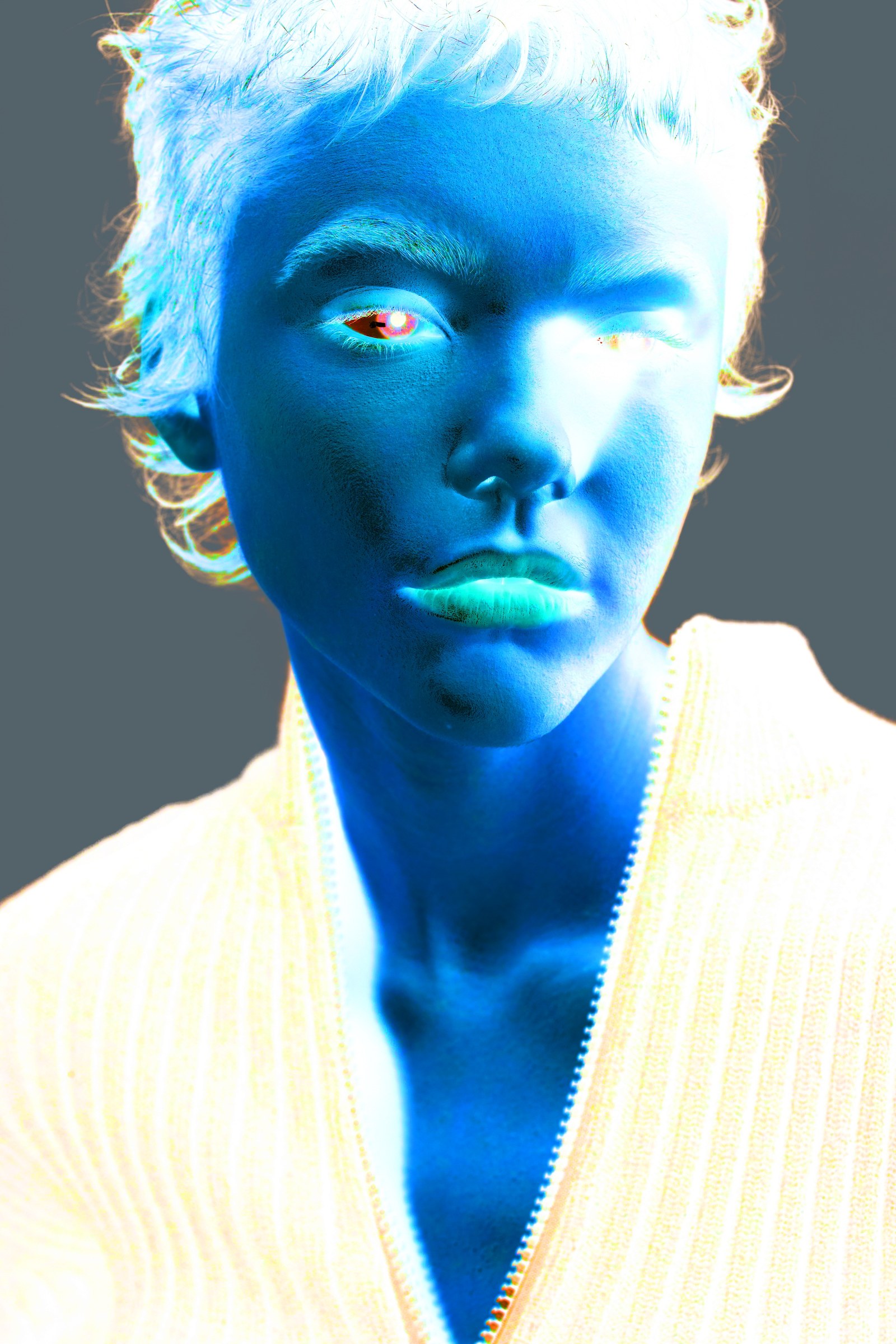
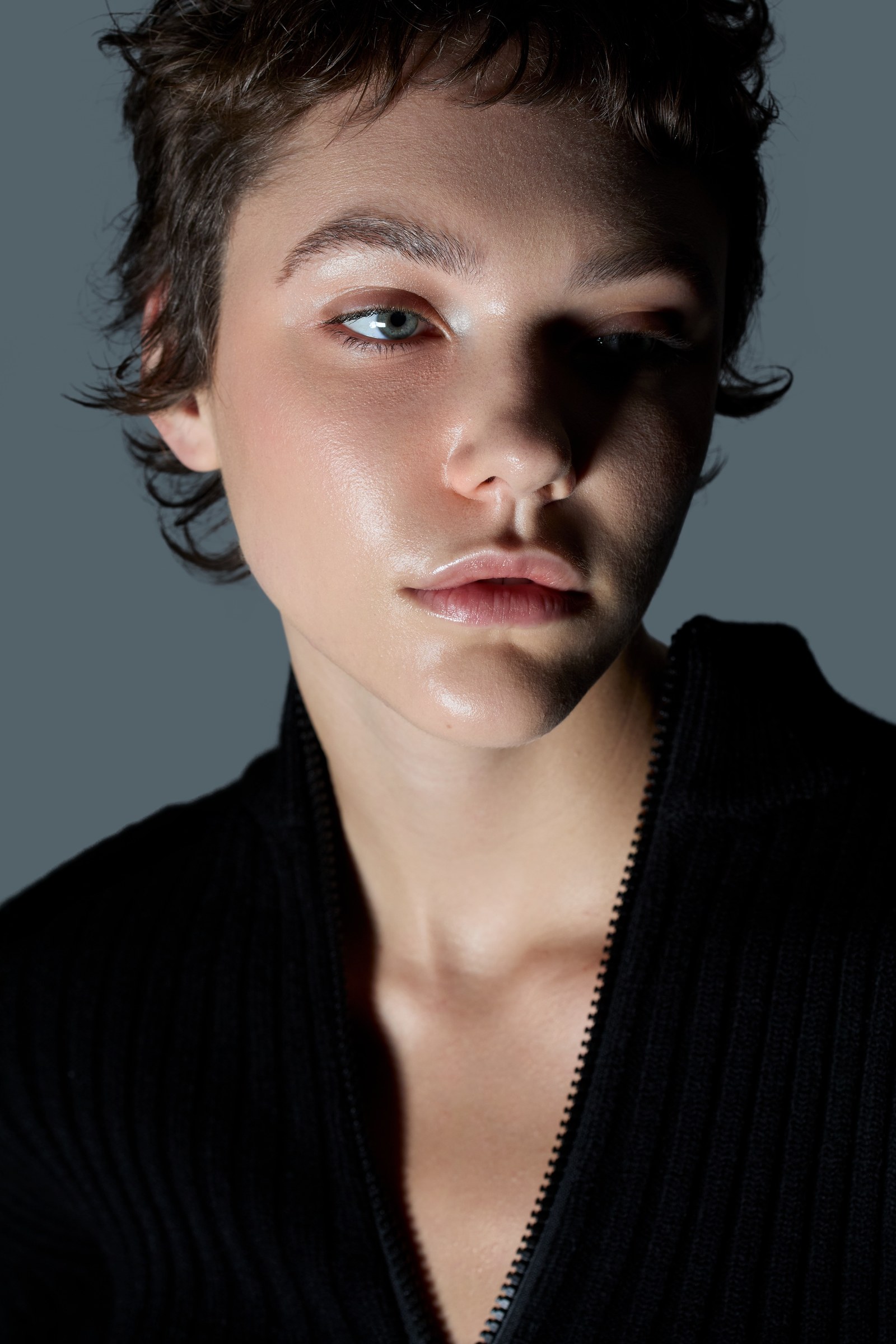
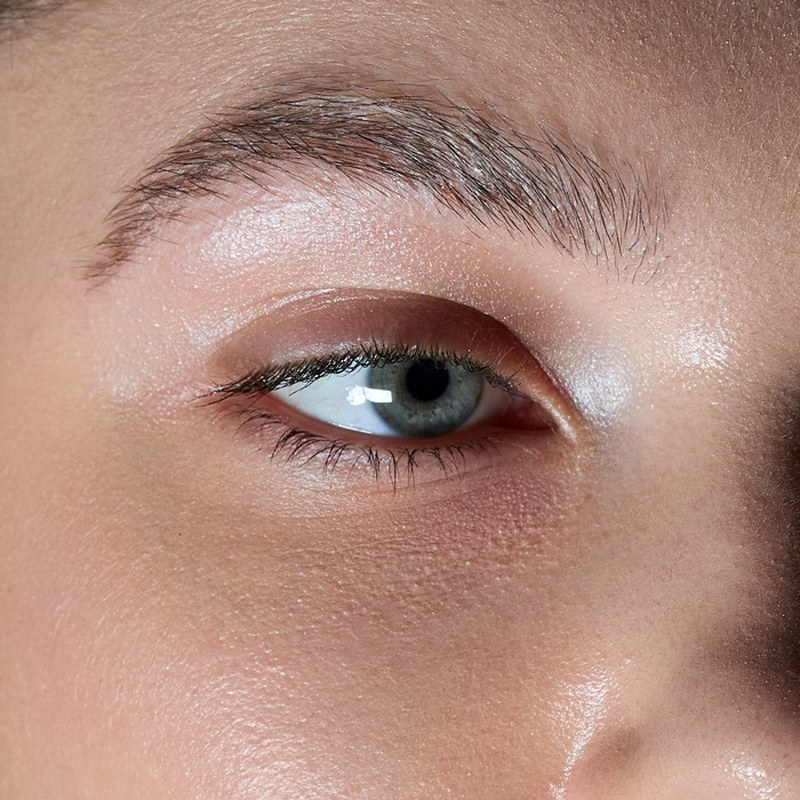


In colour the change is small. Through the EyeHelp you see exactly where it happened.
Three tools that change skin, and what each one is for.
Finds and fixes small colour shifts in the skin, one patch at a time. Texture and brightness stay untouched.

Evens out light and shadow on the skin with curves on masks. It does not fix colour; curves can even shift it. Our dodge and burn breakdown shows how.
Evens out the skin colour of the whole image or a masked area in the raw converter. Great for the overall direction, less precise for single patches. See skin tones in Capture One.
Freckles, blush and the make-up artist's colour stay. Correct only the patches that pull the eye.
Skin colour changes across the face. A sample from the forehead will look wrong on the cheek.
Hue mode changes only the tone. Color mode also changes saturation and can make skin look grey.
The view exaggerates on purpose. Switch it off often and judge in colour.
Members get Jan's full retouching courses, the EyeHelp as a one-click action in the Toolkit, and the complete recordings of our live sessions.
Make the colour shifts visible first, for example with a help view like the EyeHelp. Then paint the correct skin colour over the patches on an empty layer in Hue mode, at low strength, and check the result in colour.
A temporary help view built from a colour fill in Saturation mode and an inverted curve. It turns the skin into one even tone, so small yellow or red patches stand out. It is switched off before the image is saved.
Hue changes only the colour tone. Color mode also changes saturation, which can make corrected skin look grey or blotchy.
Both. Set the overall skin colour in Capture One, then fix single patches in Photoshop. Our skin tones in Capture One breakdown shows the first part.
Jan's full retouching courses, the Toolkit and 60+ lighting setups from editorials and campaigns
